“What can I do in the next two minutes to grow my law practice?”

Share

I know, you’re busy. I also know you have lots of ideas for getting more clients and increasing your income that you aren’t doing. You’re so busy with work, there’s no time for anything else. But actually, there is.

It’s called, ‘marketing in the moment”.

It doesn’t require you to set aside a half day, a weekend, or even an hour to work on marketing projects. Marketing in the moment means taking advantage of the little snippets of time we all have throughout the day to do the “little things” that, in the aggregate, help your practice grow.

The idea is simple (as all great ideas are). Throughout the day, as often as you can, ask yourself, “What can I do in the next two minutes to grow my practice?”

There are lots of things you can do in two minutes. You can

  • Call a client to ask if he knows about your new Facebook fan page
  • Send an email to a prospective referral source
  • Review your notes for your upcoming speech
  • Jot down some thoughts for an article
  • Brainstorm ideas for a new report or seminar
  • Write a list of new key words for your web site
  • Check in with someone who’s working on a project for you
  • Check out a competitors web site
  • Read the comments on a book you’ve been thinking about ordering
  • Read another article on this blog

Periodically throughout your day, between phone calls, while you’re driving, while you’re eating lunch, or whenever you think about it, pause and ask yourself, “What can I do in the next two minutes to grow my practice?” (You may want to write the question on a sticky note or index card and put it where you can see it.)

You’re asking your subconscious mind, of course, and it won’t disappoint you. While you’ve been working and sleeping and doing all the things you do, your subconscious mind has been working on your ideas and coming up with new ones, and, because you asked, it will deliver those ideas to you in bite-sized, two minute chunks.

You’ll remember people you may not have thought about and you’ll call them or email them. You’ll open your bookmarks and see a web site you’ve been meaning to look at. You’ll jot down ideas for your newsletter or blog. You’ll do a lot of things you may never have done had you not asked that question.

Try it. Ask yourself that question right now. Then go do it.

Share

Seven steps to better delegating for overworked attorneys

Share

Attorneys, especially sole practitioners, are often poor at delegating. “Nobody can do it as well as I can,” they say, and that’s not ego talking, it’s usually true.

There is risk in giving a task to someone who might not do it as well as you or might not get it done on time, but delegating is essential to the growth of a law practice. Delegating gives you leverage and leverage helps you to earn more and work less.

To get better results when you delegate, follow these seven steps:

  1. Give specific instructions. Describe what you want done in sufficient detail, in writing if possible. If instructions are given orally, ask them to be repeated back to you. Tell them to ask questions if they don’t understand.
  2. Give objectives, not procedures. Tell them what you want done, not how. If you’ve chosen the right person for the job, trust them to get the job done. Guide them, don’t micro-manage them.
  3. Tell them why. They’ll do a better job when they are invested in the outcome instead of just carrying out orders so explain why the task is important. And, if you give them more than one task at a time, tell them the relative importance of each.
  4. Give a due date (and time). Due dates help them to know what is expected and allow them to prioritize their work flow.
  5. Equip and empower them. Make sure they have what they need to get the job done–tools, a budget, assistance–and the authority to decide what to do. Don’t make them come back to you with every little decision.
  6. Offer incentives. If you have an especially valuable project, you might want to offer something for getting it done early or with a better outcome. A day off, dinner for two for them and their spouse, a cash bonus, all work well.
  7. Give praise. When they do a good job, thank them (even though they were doing their job) and praise them. Let them know you are pleased and they’ll want to do a good job for you next time.
Share

Evernote helps lawyers get organized and get things done–Part 3

Share

In parts 1 and 2 of this series I talked about how I use Evernote for collecting and organizing information and for managing my tasks and projects. Today I want to show you the details of my set up and workflow.

Evernote allows you to organize notes in (up to 250) notebooks. Notebooks can also be arranged in “stacks” or sub-notebooks. While this does not provide a complete Windows Explorer-like hierarchal folder set-up (you can only go down one notebook level), it does provide a logical way to organize information. And by hiding sub-notebooks (click the arrow to the left) it makes the left navigation bar less cluttered.

In the beginning, I set up twenty or thirty notebooks. I had notebooks for different areas of my business and personal life, for projects, and to archive notes I probably wouldn’t need soon (i.e., finished projects, receipts, user manuals, etc.) After several months, I found some issues with this set up. For one thing, every time I “filed” a note I had to decide which notebook it belonged in. I have a lot of cross-over in my business and many notes could logically reside in more than one notebook. I had to take time to decide which notebook was best or defer the decision; either way it meant more work.

I could duplicate the note and put it in multiple notebooks. Also not good. If I ever changed or added to a note, I had to find and change the copies.

When you search for notes, you designate which notebook to search in. If you don’t remember, you have to search different notebooks, until you find it, or search all notebooks, and if I’m doing that, what’s the point of having separate notebooks?

Notebooks vs. Tags

I began reading other blogs, to see how others organized their notes. Many people use just a few notebooks and organize primarily using tags. Tags are notebook agnostic–they apply throughout your Evernote database. I’d been using tags since I first started with Evernote, but I didn’t have a system. That soon changed.

The lights went on for me when I read how some people used just one notebook. One notebook! They used tags and Evernote’s robust search function to quickly find things. I was sold. I eliminated all notebooks except two. First is my “Inbox,” my default notebook; everything goes in there first. I review my Inbox at least once a day, assign tags, decide if there’s anything else I need to do with the information, and move the notes to my primary notebook, which I’ve named “My Notes”.

This simplified approach makes my work flow much quicker and more intuitive. I could simplify it even further and use just one notebook, using a “inbox” tag to designate that a note has not yet been processed, but having the buffer of a separate Inbox notebook allows me to quickly upload notes without having to think about them and process them later.

Right now I also have two temporary notebooks. They are both “local” meaning they are not synced to the Evernote server (and I cannot, therefore, access them on the web or from my phone). The first is “Private” and includes passwords, log-ins, sensitive documents and the like. The notebook is temporary because I haven’t yet decided what to do with this information but with an eye towards simplicity, I am leaning towards merging it with all my other (synced) notes. I will probably use Evernote’s encryption function.

The other temporary notebook is named, “To be uploaded”. It is a repository for documents on my Windows hard drive, in queue to be uploaded to Evernote. There is a monthly upload limit (60 mb on the free account, 1 gb on premium) and I simply wait until the last couple of days my monthly cycle to see how much “room” remains in my monthly allotment, so I don’t exceed it. Once I’ve moved everything to Evernote, I won’t need this notebook any longer.

As for tags, Evernote allows you a maximum of 10,000, way more than anyone should need. I currently use less than 100, and, with searches and “saved searches,” another Evernote feature, I think I can get away with even fewer.

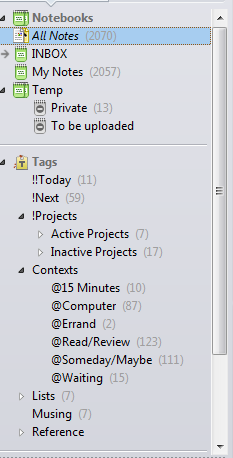
Like notebooks, tags can also be nested. Unlike notebooks, tags can be nested to as many levels as you want. You can create a true windows-like hierarchy, using tags like folders. Not only does that allow you to browse your notes, it makes for a very clean left navigation panel. I currently have only seven top level tags, as you can see in the screen shot below.

Getting Things Done with Evernote–My GTD Work Flow

As noted in my previous post, I manage my tasks and projects using David Allen’s “Getting Things Done(TM)” methodology, also known as “gtd”. If you aren’t familiar with gtd, I recommend you buy his book. You may not “get” everything the first time you read it (I didn’t), but with a little effort, I think you’ll find this to be the system that finally allows you to get organized and get things done.

I’ve set up Evernote with tags that allow me to utilize gtd. Below is a screen shot of my Windows desktop client, which I use about 95% of the time. (I occasionally use the web app and when I’m out, I use the iPhone app.)

I’m still tinkering with the names and nesting of my tags because as I use Evernote each day, I learn more about how I work best. Like you, I have different roles in life and many projects for each of those roles, as well as single “next actions” (as Allen describes them). So, by the time you read this, my tags may be different from what is now depicted, but the changes are likely cosmetic rather than functional. And yes, I know that some of what I do isn’t pure gtd.

My tag list shows the top level tags (think “parent”) and some nested ones (“children”). The “Projects” tag, for example, is used to organize “Active Projects” and “Inactive Projects” which are nested under them. Each of those tags has nested tags; to get to them, I click the arrow to the left of the parent tag.

The numbers to the right of the tag indicate how many notes have that tag. You’ll see I have 7 Active Projects and 17 Inactive Projects.

The !!Today tag is for tasks I want to do today, or as soon as possible. It is pre-pended with two exclamation marks to keep it at the top of the list. Below that is my !Next list; these are tasks I want to get to, well, next. As I complete today’s tasks, I find other tasks I want to move to the front of the line. I remove the !Next tag and replace it with !!Today.

I spend most of the day working in !!Today. That keeps me focused on doing what I’ve already determined I want to work on before I work on anything else. But I can also dip into other tags and find other tasks to do.

“Contexts” are preceded with the @ character, representing location or the tool (@Computer). Since I work from home, my context menu is pretty simple; you may have contexts for different locations and areas of your life: @work, @home, @calls, and others. The more I use gtd, the fewer contexts I’ve found necessary but they do come in handy when I want to, say, find tasks @computer, @15 Minutes, and tagged “personal,” or when I’m out and I need to find @Errands.

“Lists” are items I use regularly (e.g., my “weekly review checklist,” another gtd concept, or frequently referenced conference call numbers).

“Musing” is something I came up to tag things I’ve got floating around in my head that I need to think about. Once I’ve done that, they will be tagged !!Today or !Next or @Someday/Maybe, or they may be deleted altogether.

“Reference” is a catch all for all non-actionable items. It is my repository of notes and drafts and ideas, web clips and documents and everything else. I have nested tags in Reference for my two businesses, one for Personal, and a few other “top-level” tags. Each of these tags has tags nested within them. For example, for the attorney marketing business, I use a top level tag “am” and have nested tags for “am-blog,” “am-products,” “am-consulting,” and so on.

How I handle Projects

Each project has it’s own tag. I use a period in front of project tags to designate them as projects instead of single tasks. My project for setting up Evernote and my gtd work flow has the tag .Evernote/GTD. All notes related to that project get that tag. They will usually have other tags too, for context (@Computer, @Errand), Reference (e.,g. am-blog), and, if it’s actionable, !!Today or !Next. If I’m not sure if it’s necessary, I’ll use @Someday/Maybe.

Each project has a primary note tagged with “Active Projects” (if I’m working on it now) or “Inactive Projects” (to be done later). In this note are the objectives for the project and a checklist of tasks and/or “note links” to other Evernote notes. Thus, the main note becomes an index for the entire project with each task usually having it’s own note. That way, as tasks are done, they can be marked with a “Done” tag (or deleted) and the primary note can be updated to show that the task for that project has been done.

Evernote also has check boxes which can be used for checklists or for designating actionable tasks. Check boxes are also searchable, so you can find all tasks in Evernote that are done (checked) or not done.

Calendar: Appointments and Tasks (Ticklers)

I use Evernote to manage time-oriented tasks and projects by linking notes to my Google Calendar. (This may change once Evernote introduces a “Due Date” field which has been promised “soon”.) Each note in Evernote has a unique link. By right-clicking and copying that link, you can paste it into your calendar, either as an appointment (date and time) or as a task (“All day” event).

Every day I review my appointments and tasks, click the link and it opens the Evernote note I need for that appointment or task. (Actually, on gCal, the link isn’t currently clickable; I have to cut and paste the link into a browser window and that opens the note in the desktop app.) I also assign a “Tickler” tag to notes that have been tickled so I can browse those notes if I want to.

The Weekly Review

Every night, I go through Evernote and my calendar and decide what I want to work on the following day. Those tasks get tagged !!Today. Some days I get through the entire list, often I don’t. Tasks not done get carried forward to the following day or, if I decide there are other things I need to do first, I might remove !!Today and replace it with !Next.

I also do a weekly review, (Sunday mornings), to plan the following week. The daily and weekly review are key to making the gtd system work because you’re regularly looking at your lists and making decisions on what to do next.

As you can see, this is a very simple system. It works because it is simple and because I don’t keep anything in my head, everything’s in Evernote, which means I can focus on getting things done.

Read part 1 and part 2 of this series.

Share

Checklists every lawyer needs

Share

In his article in Lawyers USA, Jim Calloway observes that while most lawyers use lists and checklists in their practice, they don’t use them enough.

I agree.

Checklists can make you a better lawyer and make you more money. Checklists help lawyers

  • Avoid mistakes
  • Save time
  • Reduce anxiety
  • Impress clients
  • Train temps/new hires, open a new office
  • Increase profits

Every practice should have these checklists:

  • How to open a new file (what goes in the file (and where), letters to send, what to give new client to take home, what to send them, what to calendar, etc.; your intake form is a checklist of information to ask the client)
  • How to close a file (final letters/documents, what to remove/give to client, what to scan, archiving, storage, destruct date)
  • Handling leads/inquiries (what to say, what to do, what to offer, what to send, what to track)
  • How to prepare documents (complaints, responses, motions; trusts, agreements, letters, etc.)

If you handle litigation, you need checklists for:

  • Issues/causes of action
  • Possible defenses
  • Preparation of Complaint/Response
  • Discovery (each element)
  • Trial (pre-trial motions, other motions, evidence, witnesses, jury instructions, closing argument)
  • Post-trial (motions, appeals, judgement, liens, bonds, collection)
  • Settlement

For a transactional practice:

  • Information to request
  • Documents to request
  • Documents to prepare
  • Filing/registration fees
  • Timeline
  • Letters to clients
  • Letters to others

As you can see, this is a very broad list, a place to start. Start with the easy and obvious; add more later. Eventually, you  should have checklists for every aspect of your practice.

An additional benefit of creating checklists is that in the process of creating and updating them, you learn so much about what you and how you can do it better. Checklists will never replace you–your experience, your intuition, your quick thinking–but they can make your job a lot easier.

What checklists do you use in your practice? How have they helped you? What checklists will you put on your “to do” list?

Share

Evernote helps lawyers get organized and get things done–part 2

Share

Last week, I wrote about how I use Evernote to organize information. I love having all my information in one place and being able to access that information from anywhere. I also use evernote as a productivity tool, that is, to create and manage tasks and projects.

I’ve tried many other productivity tools–web apps, iPhone apps, desktop apps, even a paper based system. Each has its merits and shortcomings, features and functionalities. Some, I quickly abandoned, either because they had too many features and I got lost in their complexities, or they had too few and I couldn’t do what I wanted. I spent a long time using Toodledo, a powerful web app that syncs to many other applications. I liked it and still recommend it but I moved on because the clunkiness of the web app’s UI impaired its functionality and because Tooldledo doesn’t strictly adhere to  the “Getting Things Done” (“gtd”) methodology that I use.

One app that does follow the gtd approach is Nirvana, and I also used that for a long time. It has one of the best UI’s I’ve seen and isn’t tied to any one platform like some gtd apps for Mac (e.g., Omnifocus and Things). Nirvana will be coming out of beta “soon” and I will definitely consider it again. For now, I’m using Evernote.

Yes, evernote is a note management app, not a task management app, so why I am using it for tasks?

  • I already have all my notes in Evernote and use it daily to manage information; I like the simplicity of having everything in one application;
  • I can easily customize Evernote to suit the gtd methodology;
  • Not only is Evernote platform agnostic, it has an open API and encourages third party developers to create applications that integrate with Evernote, further increasing its functionality. As evernote continues to develop, I can see it playing an even larger role in helping me manage my life.

Evernote does have it’s limitations with respect to task management. For example, while it handles the past quite well, with fields for “Date Created” and “Date Updated,” it doesn’t have a simple way to manage future dates. (If you have an iPhone, Egretlist allows you to use Evernote to manage future tasks–but you have to use the app to do so. Also, one of the finalists in the Evernote developer’s competition has a promising app that seems to have worked around this issue.)

Evernote promises to add a “Due Date” field and this will give users and developers many more options. Until then, there are workarounds. I’ll show mine–a “tickler” system I use with Evernote and my calendar–as well as the rest of my Evernote set up and work flow for getting things done in the next post in this series.
Read part 3 of this series, or go back to part 1.
Share

Evernote helps lawyers get organized and get things done

Share

Thirty years ago, if you asked lawyers what they thought about all the information they had to manage in their practice, I’m pretty sure you would hear words like “swimming,” “drowning,” and “SOS!”. I know that’s what I would have said.

Our files and file cabinets (and desks, and floors, and side chairs. . .) were bursting with information: client data, research, pleadings, discovery, notes, correspondence, memos, briefs, inventories, photos, receipts, transcripts. . . It was a constant challenge to keep up with everything.

Then, we’d come into the office on Monday morning to a pile of mail, phone messages, and a new stack of files, on top of all the unfinished work from the week before. We had to keep up with our reading–case summaries, newsletters, magazines, memos–and we had to make sure our library was current. Law books were updated monthly or quarterly with inserts (remember “pocket parts”?) or loose leaf pages and sometimes, we’d get the latest updates only to find the previous updates unopened in a box on the floor. We had to insert the previous update first, even though many of those new pages were themselves replaced by the most recent update.

The amount of information in our lives was daunting and we often felt overwhelmed.

Wimps! Yes, wimps, I say!

Seriously, look at our lives today. Not only do we have so much more information, it’s everywhere. In our files, on our computers at home, in our email, and on our phones. It follows us, mocking us as we attempt to keep up with the never-ending flow. Just when you think you might be close to ALMOST catching up, another thirty “must read” articles, emails and Google alerts appear and you know there will be another thirty before lunch. Oh, and let’s not forget text, instant messages, tweets and status updates.

Technology has damned us. And technology will save us.

If you’re feeling overwhelmed by all of the information in your life, relax, take a deep breath, exhale, and repeat after me: “I will never get caught up and I don’t have to.”

Because you don’t have to, even if you could. What you do have to do is become a better librarian.

Librarians manage vast amounts of information. They read a lot but they don’t read everything. Instead, they know what they have and where to find it, and if you want to gain control over the tsunami of information that washes over you every day, you need to do the same.

Librarians have a system for processing, storing, and retrieving information. They

  • Collect,
  • Categorize,
  • File, and
  • Find.

They had a system for doing this in the non-digital days (remember card files?) and today, they use technology. You can, too.

. . .if you took away every piece of software I own and left me with Evernote (and an Internet browser) I could run my two businesses, blogs, and personal life without missing a beat.

I don’t practice any more but I still have an immense amount of information I need to manage. After many attempts at other software solutions, today I use Evernote for everything. In fact, if you took away every piece of software I own and left me with Evernote (and an Internet browser) I could run my two businesses, blogs, and personal life without missing a beat. (Actually, I could be 100% cloud-based and use only the Evernote web app instead of the desktop client.)

Evernote allows me to collect, organize, label, and access information (notes, docs, task lists, audios, photos, etc.) at any time from anywhere. My Evernote account syncs my laptop (windows), my iPhone, and “the cloud” (web app). I enter information via my desktop application, via email, and via a web clipper that allows me to capture entire web pages or any portion thereof. With my iPhone (Android and other platforms are also supported) I record audio notes, take photos of a whiteboard or paper notes (or anything else), and enter text notes, and send them directly to my EN account.

Notes are organized via notebooks and tags. I can quickly find whatever I need by browsing or by searching tags and/or key words. I can also share notes and notebooks with my wife or business partners and I can make designated notes (or notebooks) public.

I store everything in Evernote: notes, web clippings, ideas, checklists, pdfs, photos, my copy writing “swipe” list. I’m moving all of “My Documents” into Evernote. Then, I’ll start scanning the mountain of paper notes I have collected over the years and go 100% paperless. In addition to having ubiquitous access to my information, Evernote provides an extra layer of back-up protection. If my computer goes down, my information won’t go down with it. (I also back-up my local EN database via an external drive and via Mozy.)

But I don’t just use Evernote for storage and retrieval, I also use Evernote every day as part of my work flow. I write everything in Evernote (this post started out there) and I use it all day long as (part of) my task management system. (I’ll share my gtd system in a later post.)

Evernote won’t let you jettison your time/billing or document assembly applications and it won’t let you edit videos. It doesn’t create spreadsheets or Powerpoint slides. But for managing large amounts of information, I’ve found nothing better. I’ve used OneNote (and loved it) and before that, InfoSelect (and loved that, too) but Evernote stands in a class by itself.

Evernote is free and there is a paid version with additional capacity and features. Download it and fall in love with it today.

Read Part 2 of this series.

Share

Register for this free goal setting webinar and achieve your goals in 2011

Share

“Most people fail to achieve the goals they set,” my mentor and personal coach David Byrd told a group of 2000 entrepreneurs over the weekend. You probably already knew that. But do you know why?

The first part of the answer is that they don’t know how to set goals in the first place.

Should you choose goals that are so easy you know you will accomplish them? Well, if you do that, you’ll feel good about accomplishing a lot of goals but you won’t see much growth. So how about choosing huge, lofty goals you will probably never accomplish? Is that the answer?

I used to think so. For years, I set goals I never came close to achieving. Year after year I would set the same goals and year after year, fail to accomplish them. It was discouraging and eventually, I lost interest in goal setting.

Now, things are different. I know how to set goals that are both inspiring and achievable and I am achieving them. But not just because I know how to set them properly. You also need a system for goal achievement.

On Wednesday, January 19, I’m hosting a webinar featuring David Byrd who will teach you how to set goals and achieve goals. You’ll learn a system he has used for more than thirty years working with professionals, executives, and business owners, as an executive leadership coach.

The webinar is 100% free and I promise you will learn a lot that you can use to achieve more in 2011.

Click here for details and to register.

Share

The cure for the overworked and overwhelmed attorney–part two

Share

So it’s a new year and you’re ready to get back to work. If you’re like most attorneys, you’re excited about all of the plans you’ve made for the future but feeling overwhelmed with everything you have to do. You’ve got “too many”.

  • Too many articles and blog posts to read (not to mention the books piled up on your shelf (or floor) and in your Kindle or iPad
  • Too many people to call, letters to write, lunches to attend
  • Too many projects you’ve been putting off but promised yourself (spouse, partner) you will (finally) do
  • Too many continuing education seminars you don’t have time for but must do because your compliance group is “due” (guilty)
  • Too many commitments you’ve made that you know you can’t possibly keep

And let’s not forget your legal work. You know, the stuff that actually gets you paid.

In a previous post, I wrote about how I dramatically cut my work hours (and stress) by delegating. If you’ve ever emptied a closet or a desk drawer, all that empty space feels good but you know it won’t last. It’s only a matter of time before that closet or drawer is once again filled to overflowing. Once you get good at delegating as much as possible and have more time available, it’s the same thing: you find more and more things to fill your time and before you know it, once again, you’re overwhelmed.

I’ve still got “too many”. I have a backlog of hundreds of articles I need to read and I’ve bookmarked so many web sites to visit my head is spinning. I glance at the updates in my Twitter stream and wonder how I could possibly read even a fraction of the tweets that go past me, let alone follow up on the relevant ones, let alone connect with the people who sent them.

I think it’s safe to say we all have “too many”. So how do we avoid being overwhelmed?

First, take a deep breath. Exhale. Once more. Now, repeat after me, “I can’t do it all, I will never get everything done, and that’s okay.”

None of us will ever get it all done. We’ll never read all those articles or complete all those projects. There’s too much and there will always be more and the first thing we need to do is acknowledge that we’ll never get it all done AND THAT’S OKAY.

So relax.

The key to success and a well-lived life  isn’t doing everything, it’s doing the most important things. It is the 80/20 principle: a few things matter, most everything else doesn’t; the ones that matter are the ones that produce most of your results. Focus on doing a few important things, and don’t worry about the rest.

Success comes from achievement, not from being busy.

About a year ago, I started working with David Byrd, an executive coach, who helped me get clear about what I wanted to accomplish. He taught me the value of being driven by vision–my vision of the future I want to create–instead of being driven by circumstances. The idea is to start with the end in mind and then set goals that are consistent with that vision. In doing so, we cut through the clutter of “too many” possibilities and focus on the most important ones. The system gives me a place to come back to whenever I find myself wandering. WhenI feel overwhelmed or losing clarity about what to do next, I revisit my vision and my goals and I’m back on track.

David Byrd also taught me a system for achieving my goals. I plan each month so that my activities (projects, actions, etc.) move me forward towards my goals. I also plan each day. As a result, I always know what I need to do.

In short, the system helps me put one foot in front of the other and continually move forward towards my destination. I don’t get distracted by all of the side roads or billboards.

So, as we begin a new year, have you chosen your most important goals? Have you put them on paper? And do you have a plan for achieving them?

If you are driven by vision, have goals that support that vision and a plan for achieving them, you’ll have clarity about what to do and what you can let go of. You’ll be empowered, not overwhelmed. And you’ll be excited because you know where you’re going and you have a map that will get you there.

On January 19, Mr. Byrd will be conducting a free goal-setting webinar for my subscribers. Please join us. Register here for this free webinar and make 2011 your best year ever.

Share

What do SEO and client relations for lawyers have in common?

Share

“I’m a busy lawyer. I don’t have a lot of time to write a newsletter or blog.”

Good. If you have time to write a lot, your clients and prospects might not read what you send them.

While frequency of contact is important, quality is far more important. Instead of writing low-quality weekly messages, you’ll do far more to strengthen your relationships and build your reputation by sending a high-quality missive once a month.

I am subscribed to hundreds of blogs and email newsletters. My email inbox and RSS feed reader are inundated. Several times a day I peruse these offerings. I spend most of that time skimming the headlines and deleting or archiving nearly every article. I may scroll through ten or twenty percent but I probably read no more than two percent. The ones I read (and, often save) are where the real value for me lies.

I stay subscribed to this multitude of newsletters and blogs because they give me a sense of what’s trending in my areas of interest. I also find articles I can share with my Twitter and Facebook companions. And, I do find articles worth reading. If I don’t have time to read them on the spot, I save them to read later. Many of the publications I follow publish several times per week; some of the bigger publications publish twenty or thirty articles per day.

I filter through a large quantity of articles looking for the few of high quality. Sometimes they come from the multitude. More often, they come from the handful of sources that consistently provide high quality material. They may not post frequently and not everything they post is golden, but the most useful material (for me) usually comes from the same sources. Those are the ones I look forward to and make sure I read.

So, if you write a newsletter or blog, you don’t have to write every day or three times a week or even weekly. Write when you can but make it worth reading. Your clients and prospects will appreciate it.

Apparently, uncle Google agrees. Carolyn Elefant writes that while in the past, quantity of keywords and links to a web site determined primacy in search engine ranking, Google has modified its algorithm to better reflect the quality of those keywords and links. You don’t need everyone linking to your site, so long as you have the right ones.

Share

Lawyers: How to write emails that get results

Share

In my previous post I talked about email mistakes to avoid. Today, I want to share some basic but nevertheless vital ideas for writing emails that get opened, get read, and get results.

WRITE AN EFFECTIVE SUBJECT LINE

Your email may be powerful and persuasive but if people don’t open it, they won’t read it. The key to getting your emails opened is your subject. It is the “headline” for your email message. It has to stop the reader who is skimming his email in box and get them to click. The more effective your subject, the more often this will occur. Also, an effective subject “pre-sells” the message contained in the body of your email, making it that much more likely that the recipient will respond to your request.

  • Be specific. Effective subjects are clear and precise. They tell the reader what your message is about.
  • Include a benefit. What will the reader gain (or avoid) by reading your email? Why should they read your message?
  • Use their name. Although using the recipient’s name in the subject is overdone in some circles, it is still an effective way to get their attention. It can also convey urgency, e.g., “John, please call me as soon as you read this”.
  • Include key words. Specific nouns and active verbs communicate. Project-specific key words will also get attention.
  • Include due dates. If you have a time-oriented offer or request, consider putting the date in the subject.
  • Front load. Most email programs cut off the end of lengthy subjects so put the most important parts up front.

GET TO THE POINT

The purpose of the subject (headline) is to get readers to open the email. The purpose of the first sentence is to get them to read the second sentence. And so on. You’ve got their attention but it is oh so easy to lose it, so say what you have to say–immediately.

Put the most important things up front: due dates, requests for information, requests for action. If you bury these, they may never been seen (or seen too late). Telegraph your message so the reader cannot possibly miss it.

How long should an email be? Long enough to get the job done and no longer. Make it as short as possible but don’t worry if your message is lengthy. In a particularly lengthy message, you can always link to additional information (or offer to send it).

CLOSE FOR ACTION

  • Summarize. There’s a communication formula that works in writing and speaking. (1) Tell them what you’re going to tell them. (2) Tell them. (3) tell them what you told them. This may not be necessary in a short email but it can prove helpful to you and your reader in a longer message.
  • Tell them what to do. Repeat your request (or offer) at the end of the message and tell them what to do. Do you want them to call? Email? Go? Be specific; you’ll get more people doing what you want them to do when you tell them precisely what to do.
  • Tell them why. Studies show that when you give a person a reason they are more likely to comply with a request. This should obviously be a part of the body of your email but it’s a good idea to repeat it in your close.
  • Give them ways to contact you. Don’t assume they know your phone number or even your email address. (You might want a reply to a different email.) Provide full contact information in your signature to make it easy for them to contact you or otherwise connect with you through a web site or social media.

Writing effective emails will save you time and get you better results. Your recipients will also save time and be more inclined to not only read your messages but act on them.

Share